
Modern Warfare 4 Secure Boot and TPM 2.0 are not optional on PC. If either one is off, the game blocks you from every online mode. That is a harder line than Black Ops 7 and Warzone, where Activision restricts certain modes and playlists, including Ranked Play, and may put you in separate matchmaking instead. The good news is that any Intel 8th Gen or AMD Ryzen 2000 series chip or newer already has a TPM built in. Usually the fix is a couple of switches in Windows and the BIOS, and you can check both before you touch anything.
We covered the requirement itself in our Modern Warfare 4 PC requirements story, and the rest of launch week in our Modern Warfare 4 launch coverage. This is the fix, based on Activision’s own TPM and Secure Boot support article, last updated October 21.
Will your PC work at all?
Activision lists three things to check first:
- Windows: Windows 10 version 22H2 or later, or any version of Windows 11. If you are on Windows 11, Activision says TPM 2.0 and Secure Boot are likely already on.
- CPU: Intel 8th Gen or newer (the TPM there is called Intel PTT), AMD Ryzen 2000 series or newer (called AMD CPU fTPM), or a separate TPM chip on the motherboard.
- Disk and boot mode: Secure Boot needs the BIOS in UEFI mode, not Legacy or CSM, and the Windows drive has to use GPT, not MBR.
Windows 10 22H2 is enough to clear the security check. If you also want the near-instant first launch from Advanced Shader Delivery, that needs Windows 11 24H2 or newer and the Xbox PC app copy of the game, so it is worth knowing before you decide whether to stay on Windows 10.
Run the Secure Attestation Wizard first
Activision’s Secure Attestation Wizard is the quickest way to see what is missing. Version 1.3.0 went up on October 21. Extract the zip, run CODSecureAttestationWizard.exe, accept the terms and start the scan. If it says your system is compliant, you are done and can delete the wizard. If not, it lists what needs changing:
| Wizard result | What it means and what to do |
|---|---|
| TPM 2.0: Not Enabled | Turn on TPM in the BIOS (steps below) |
| Secure Boot: Not Enabled | Turn on Secure Boot in the BIOS |
| Boot Partition not set to GPT | Convert the Windows drive from MBR to GPT |
| BIOS Boot mode not set to UEFI | Switch the BIOS from Legacy or CSM to UEFI |
| BIOS Firmware Update Required | You meet the minimum today, but Activision recommends a BIOS update from your motherboard maker and says it may be required later |
| Authorization Key Failed | Click Generate Key and choose Yes on the enrollaik.exe prompt |
| TCG Event Log Failed | Restart and install the latest Windows update |
Check it yourself in Windows
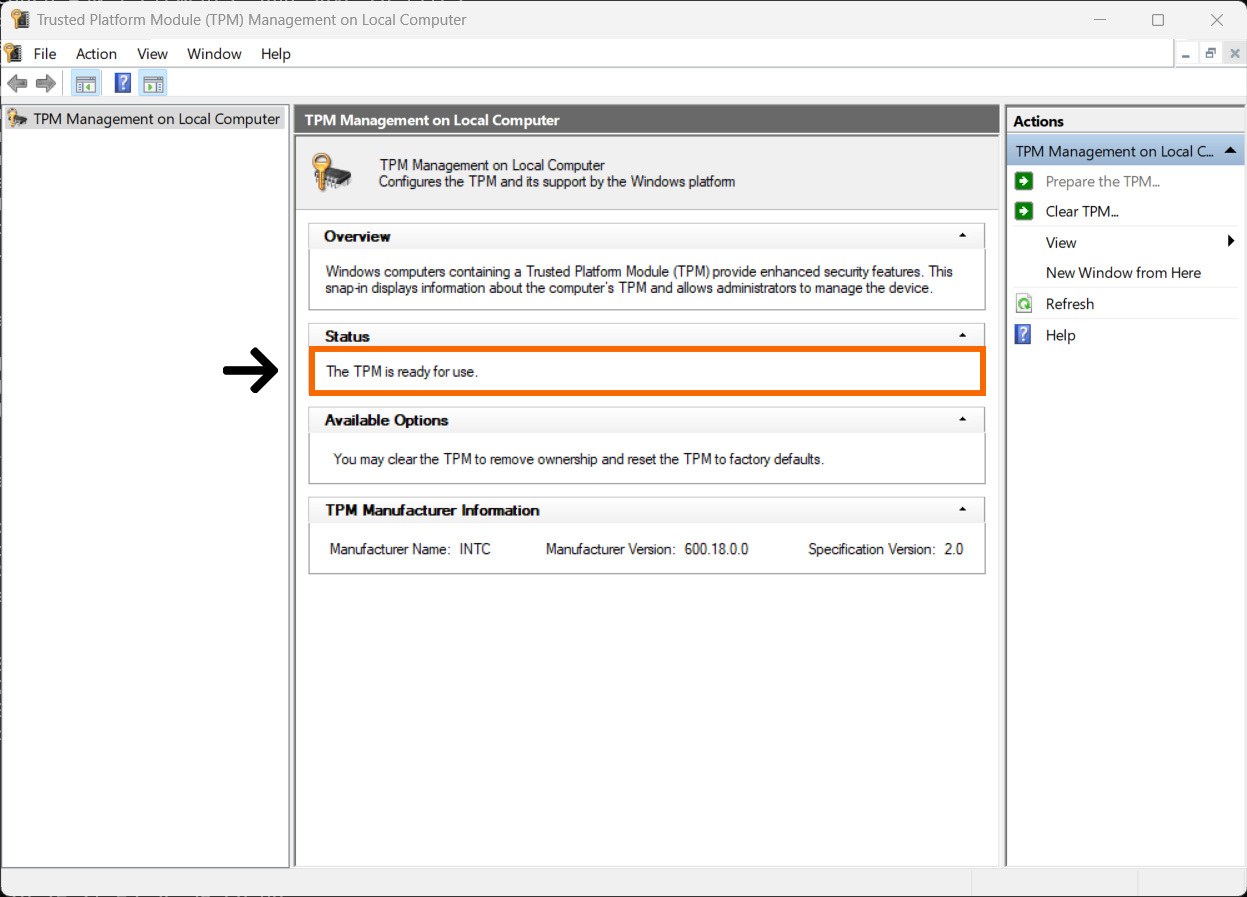
You can also look without the wizard. Press Windows+R, type tpm.msc and press Enter. If the status says “The TPM is ready for use,” that half is done. “Compatible TPM cannot be found” means it may be switched off in the BIOS, or your hardware may not support it.
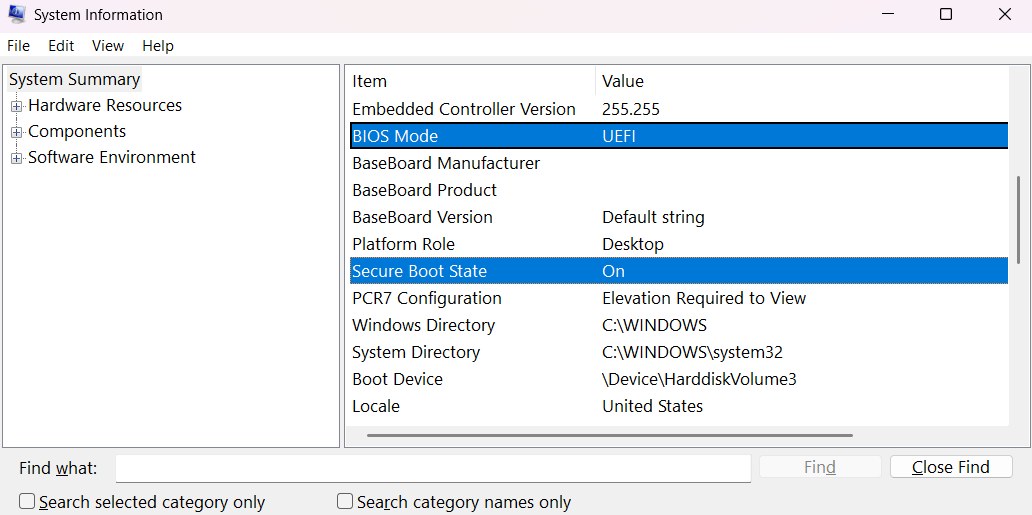
For Secure Boot, press Windows+R, type msinfo32 and press Enter. Look for two lines in System Summary. BIOS Mode should say UEFI, and Secure Boot State should say On. Off means your PC supports it and it just needs turning on. Unsupported means your system may not support it, so check your motherboard documentation. If BIOS Mode says Legacy, you need to switch to UEFI, which may mean converting the drive first.
To check the drive, open Disk Management, right-click the disk Windows is on, choose Properties, then the Volumes tab. Partition style will say GPT or MBR.
If your drive is MBR
Windows has a built-in converter called MBR2GPT, and Microsoft has a full guide. Activision’s conditions are strict: Windows 10 version 1703 or later, a 64-bit install, no more than three partitions on the disk, BitLocker or other encryption off, no dual boot, a BIOS that supports UEFI, and Secure Boot disabled before you start. Microsoft adds that the disk can’t have extended or logical partitions. The tool converts without deleting data, but Microsoft is clear the change can’t be undone, so back up anything you care about first.
From an admin Command Prompt, run mbr2gpt /validate /allowFullOS first. If that passes, run mbr2gpt /convert /allowFullOS. Then restart straight into the BIOS and switch the boot mode from Legacy to UEFI, because Microsoft says the converted drive won’t boot properly until you do. Once Windows starts again in UEFI mode, you can turn on Secure Boot.
Getting into the BIOS
On Windows 11, go to Settings, System, Recovery, and pick Restart now next to Advanced startup. On Windows 10 it is Settings, Update & Security, Recovery. After the restart, choose Troubleshoot, Advanced options, UEFI Firmware Settings. You can also tap Del, F2 or F10 while the PC starts, depending on the board.
Turning on TPM and Secure Boot
Menu names vary by motherboard maker, so treat these as what to look for rather than an exact path.
- TPM on Intel: enable Intel PTT, sometimes labeled Security Device Support.
- TPM on AMD: enable AMD CPU fTPM.
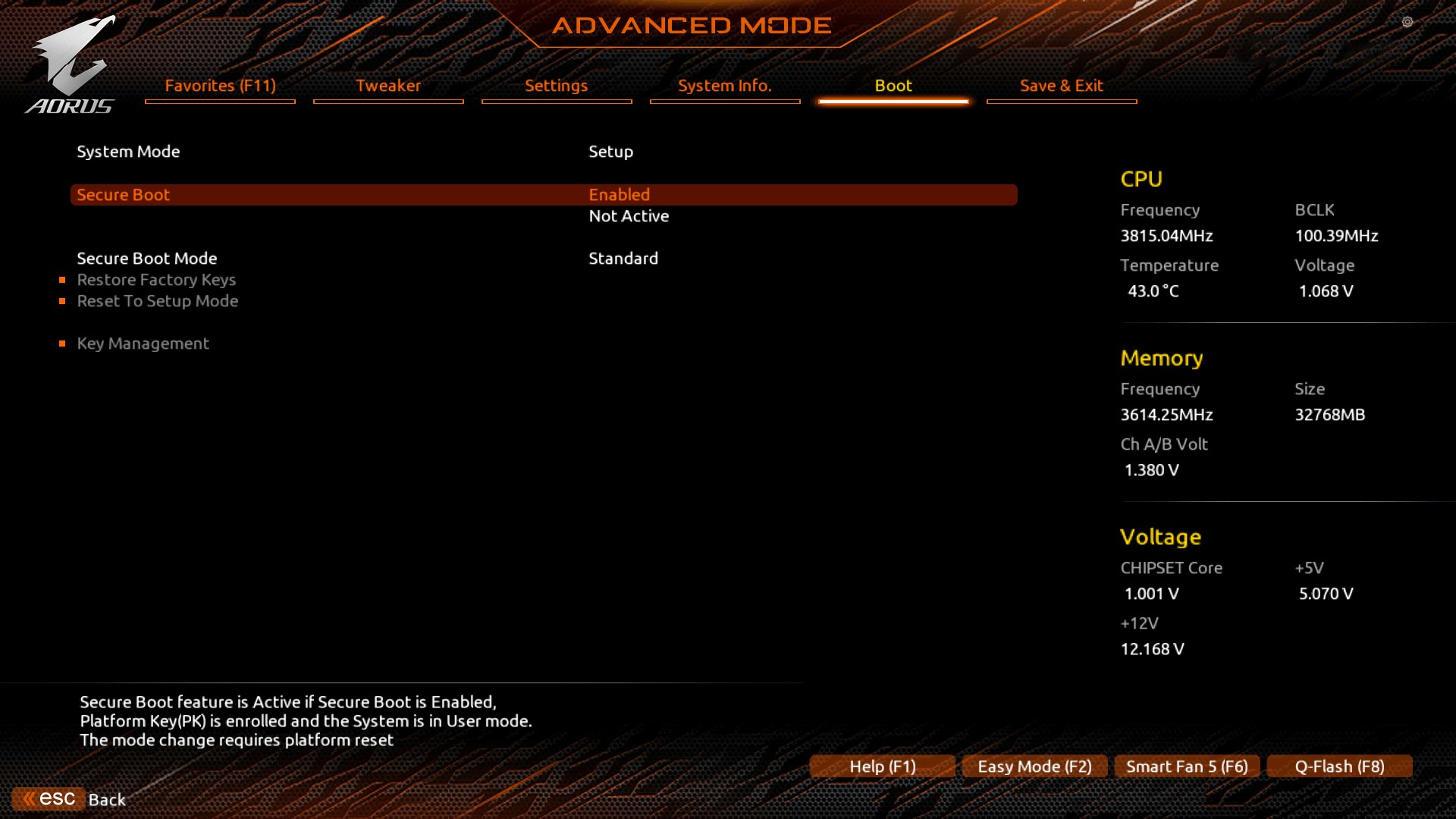
- Secure Boot: set it to Enabled.
The TPM setting usually sits under Advanced, Security or Trusted Computing, and Secure Boot is usually on the Boot or Security tab. If Secure Boot is greyed out, set the boot mode to UEFI, save, restart back into the BIOS, and it should unlock. If your board has a CSM setting, turn it off while you are there.
Many BIOS screens have a search, often on F9, which saves a lot of digging. F10 usually saves and exits. Activision links official guides from ASUS, MSI, Gigabyte, ASRock and other board makers in its article, and it warns that changing BIOS settings the wrong way can stop a PC from booting, so follow your board’s own instructions if anything looks different.
The official Call of Duty channel also has a video walkthrough:
The prompt on first launch
The first time you start the game after all this, Windows shows a User Account Control prompt as part of TPM registration. Usually it is for CODBrokerInstaller.exe, which asks for your PC’s administrator username and password and then Yes. Some PCs get a prompt for enrollaik.exe instead, which just needs Yes. Choose No or close either one and you can’t play.
If you get a “CODBrokerInstaller.exe authorization declined” error and never saw a prompt, your UAC setting is too low. Search the Start menu for “change user account control settings,” move the slider to Always notify or the default notch just below it, select OK and restart the game.
Firmware that needs an update
Some machines have everything switched on and still fail. You can see your TPM firmware version in tpm.msc under TPM Manufacturer Information. Activision says AMD firmware in the 3.*.0.* range, for example 3.92.0.5, is not compatible and needs a BIOS update, and one sign of it is the enrollaik.exe prompt coming back even after you click Yes. A version like 3.92.5.5 falls outside that range, and for it Activision says to ask your motherboard maker whether a firmware update is available. AMD explains the issue in its own fTPM FAQ. Intel firmware in the 302.12.*.* or 303.12.*.* range may need an update too, and Activision asks Lenovo owners to open a support ticket with Lenovo.
If the check still fails after all that, Modern Warfare 4 keeps you out of online play entirely, unlike Warzone and Black Ops 7, which restrict certain modes and playlists instead. Go back to the wizard, see which line it flags, and work from there.