
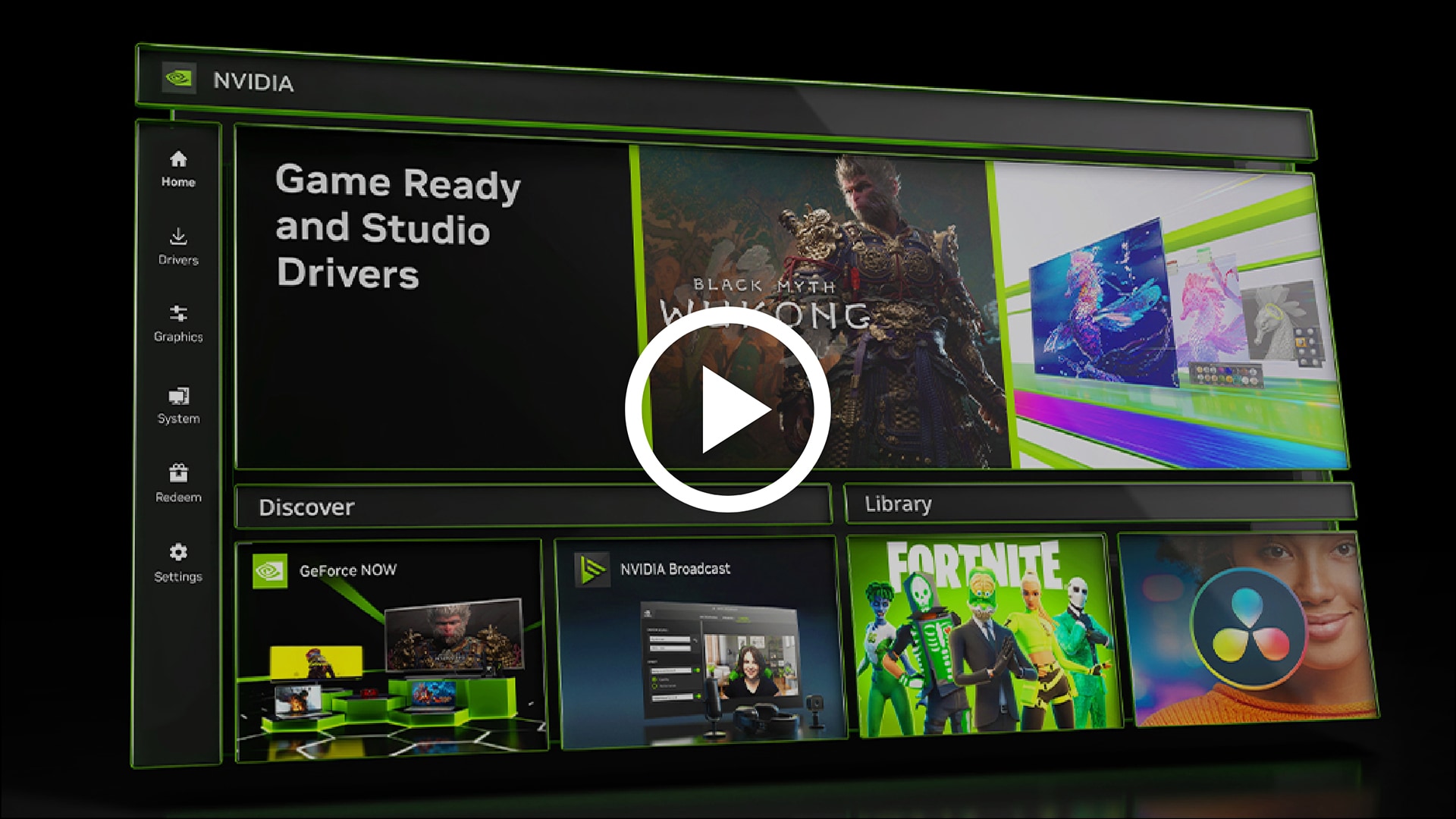
The NVIDIA App AI agent setting arrived with version 11.0.9.565, and it lets compatible AI assistants talk to the app on your PC so they can check your games, change graphics presets and start ShadowPlay recording for you. It’s a genuinely handy idea if you use those tools, but VideoCardz and user reports found the option already switched on after updating, so it’s worth a quick look in your settings either way.
What the new setting actually does
The feature is a small local server built on the Model Context Protocol, usually shortened to MCP. In plain terms, MCP is a common language that lets an AI assistant use other programs on your computer, a bit like giving it a remote control with labeled buttons. NVIDIA’s release notes name Hermes, OpenClaw and Perplexity as examples of assistants that can use it.
Once an assistant is connected, you can ask it in normal sentences to do things you’d usually click through yourself. NVIDIA says agents can see your installed games, apply optimal settings and turn on ShadowPlay to record gameplay. VideoCardz’s breakdown of the available tools adds launching games, taking screenshots, showing or hiding the performance overlay, checking driver updates and adjusting Battery Boost and Whisper Mode on supported laptops.
Is it something to worry about?
Not really, but it’s fair to want to know it’s there. The server only listens on your own PC, at the local address 127.0.0.1 and by default on port 13508, so it isn’t reachable from the internet. It also doesn’t hook up to any outside AI service by itself. Nothing happens unless you install and connect an assistant that knows how to use it.
The part worth thinking about is what happens after you connect one. Plenty of AI assistants run on remote servers, so details they read from NVIDIA App, like your game list or driver version, could end up being sent along depending on how that assistant works. If you don’t use AI agents at all, there’s simply no reason to leave the door open.
NVIDIA’s release notes mention the feature but don’t say it starts out enabled. That finding comes from VideoCardz, which saw the toggle on after updating, along with reports from other users.
How to turn off AI agent access in NVIDIA App
- Open NVIDIA App.
- Click Settings.
- Go to the Features tab.
- Scroll down to the Connect Agents & Apps section. NVIDIA’s own notes call this area AI Agents and App Connections, so look for either name.
- Switch off “Allow AI agents to control NVIDIA App”. The toggle turns from green to gray.
According to VideoCardz, NVIDIA’s MCP documentation says turning off that main toggle stops the server from running in the background. You can switch it back on from the same spot any time you want to try an assistant.
If you’re curious about letting an AI tweak your game settings, it’s an easy thing to experiment with. If not, it takes about thirty seconds to switch off and get back to playing. For more PC news and guides, see our PC hub.